This guide explains how to open the Vektori POS activity log and investigate a connection error or a situation where the payment terminal and the POS show different information about a payment. The timestamps and error messages in the log help you investigate the transaction. Confirm the status of an uncertain payment before charging for the same purchase again.
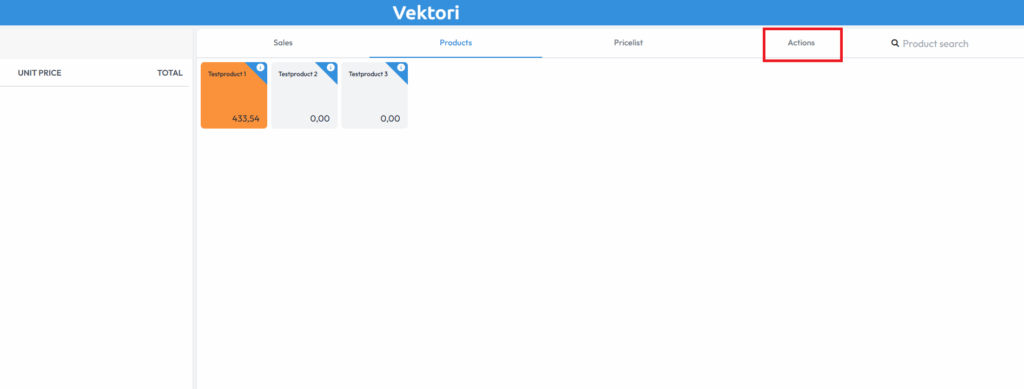
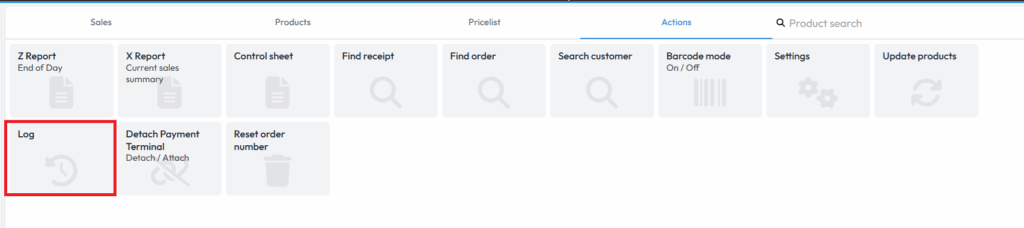
Location in the POS: Actions → Log.
Open the POS activity log
- Open Actions → Log.
- Find the events at the time of the problem. The log shows timestamped actions and error codes, such as cancelled sales, deleted rows and POS start-ups.
- If needed, filter the view using All, Activity, Warning or Error.
If the payment was charged but the sale did not complete in the POS
If the payment terminal reports a successful payment but Vektori shows the sale as declined or interrupted, do not charge for the same purchase again until you have confirmed the payment status.
- Check the transaction in the POS under Actions → Control sheet.
- If the transaction is missing or the POS and payment terminal information conflict, contact Vektori support.
- Give support the receipt number. If no receipt number is available, provide the transaction time, amount and the POS used.
Record a missing sale only after confirming the charge
Follow these steps only when the payment has been confirmed as successful and the sale has not been recorded in Vektori:
- Temporarily disconnect the payment terminal from the integration using Detach / Attach.
- Record the missing sale in the POS using the original products, prices and card payment method. While the payment terminal is detached, recording the sale does not initiate a new charge on the terminal.
- Reconnect the payment terminal using Detach / Attach before the next card payment.
The sale is recorded at the time you enter it, not at the time of the original card payment. Take this into account when reconciling reports. Control sheet records cannot and must not be edited afterwards.
Check the POS connection status indicator
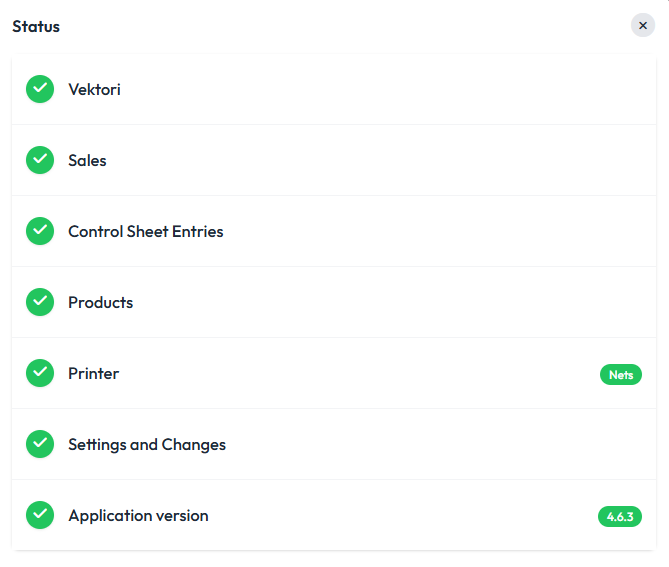
The POS home screen has a circle showing the connection status. In landscape orientation, it is next to the Vektori text; in portrait orientation, it is in the top right corner. A check mark indicates that the connection is working. If the circle contains an exclamation mark, tap it to see the error.

If the payment terminal does not receive the payment from the POS
First identify the payment terminal provider, model and integration. Connection checks depend on the solution: choose the relevant guide from the provider-specific payment terminal instructions.
Do not change the payment terminal or receipt printer settings as a precaution. If the correct provider's guide does not resolve the problem, submit a support request to Vektori. Include the POS used, the payment terminal provider and model, the error message and the time.
Once the connection has been restored, you can continue with new sales. However, a restored connection does not prove that an earlier uncertain payment succeeded. Confirm its status before charging for the same purchase again.
Comments
0 comments
Please sign in to leave a comment.