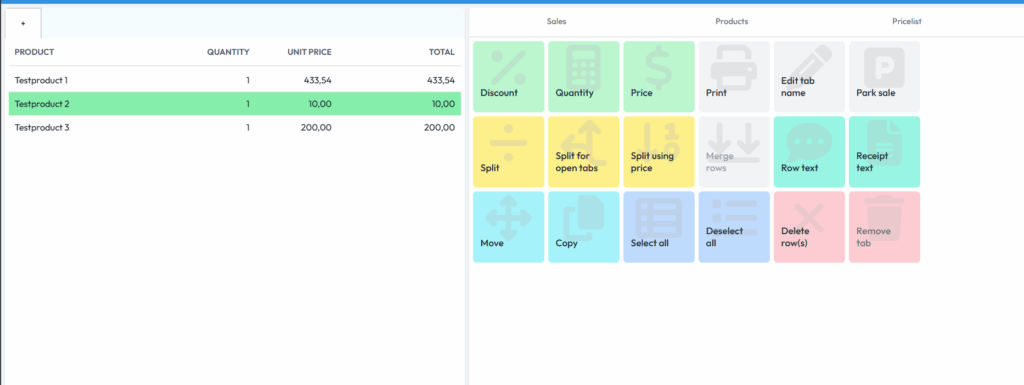
This guide explains how to open the function menu for a product line, or sales line, in the Vektori Kassa basket and select the edit you need. You can edit one or more selected lines. The menu also includes functions that apply to the entire sale or tab.
Location in the checkout: Checkout → open sale basket → tap a product line.
Open the functions and check the selected products
- Tap a product in the basket to open the editing functions.
- If you want to edit multiple lines, also select the other required lines. Selected lines are highlighted.
- Check your selections before using the function. The appearance of the menu and how it is closed may vary depending on the checkout version.
Change the product price or quantity
- Discount: enter a discount as a percentage or in euros.
- Quantity: change the quantity of products in the basket.
- Price: change the product’s selling price.
- Copy: add copies of the selected lines to the basket and increase the quantity to be sold.
Split or combine product lines
- Split: split the selected product lines into the desired number of equal parts on the same tab.
- Split across tabs: divide the selected products equally between all open tabs. Open the correct total number of tabs before splitting.
- Split by price: divide the line total into the parts you want. Check the total of each part and the combined total of all parts before and after splitting. If the total changes unexpectedly, resolve the issue with support before taking payment. Provide the checkout version and the amounts used.
- Combine lines: combine split lines for the same product. The product’s normal price is used when combining lines. If you have changed the price at the checkout, set it again after combining the lines using the Price function. Check the quantity, unit price and total.
Move products or save the sale for later
- Move: move the selected products to another tab.
- Tab name: name the tab, for example, according to the table number or booking.
- Park sale: save the sale so that you can continue and take payment later. If Print when parking is enabled for the kitchen printer, the lines included for printing are also sent to the kitchen.
Add text and open printing
- Line text: add a message related to an individual product, such as preparation instructions. Write the message yourself or select a Line text template.
- Receipt text: open separate fields for a shared message on the customer receipt and kitchen receipt. If necessary, select a separate template for each field.
- Print: open the print window. When sending to the kitchen, select Print kitchen receipt there. The printer’s product groups and printing only new lines affect the printout.
Add preparation instructions before sending the order. The indicator for a line printed in the kitchen may look like an x or a tick; the indicator alone does not confirm that the paper has arrived in the kitchen. If you send an order or additional order to the kitchen, the exact steps and interpretation of the printing indicators are provided in the guide Printing an order to the kitchen.
Deselect, remove products or delete a tab
- Select all: select all products in the basket.
- Deselect: deselect the lines. The products remain in the basket.
- Delete line(s): remove the selected products from the basket.
- Delete tab: delete the tab completely.
After making a change, check the correct tab, products, quantities and total before continuing with the sale.
Comments
0 comments
Please sign in to leave a comment.